
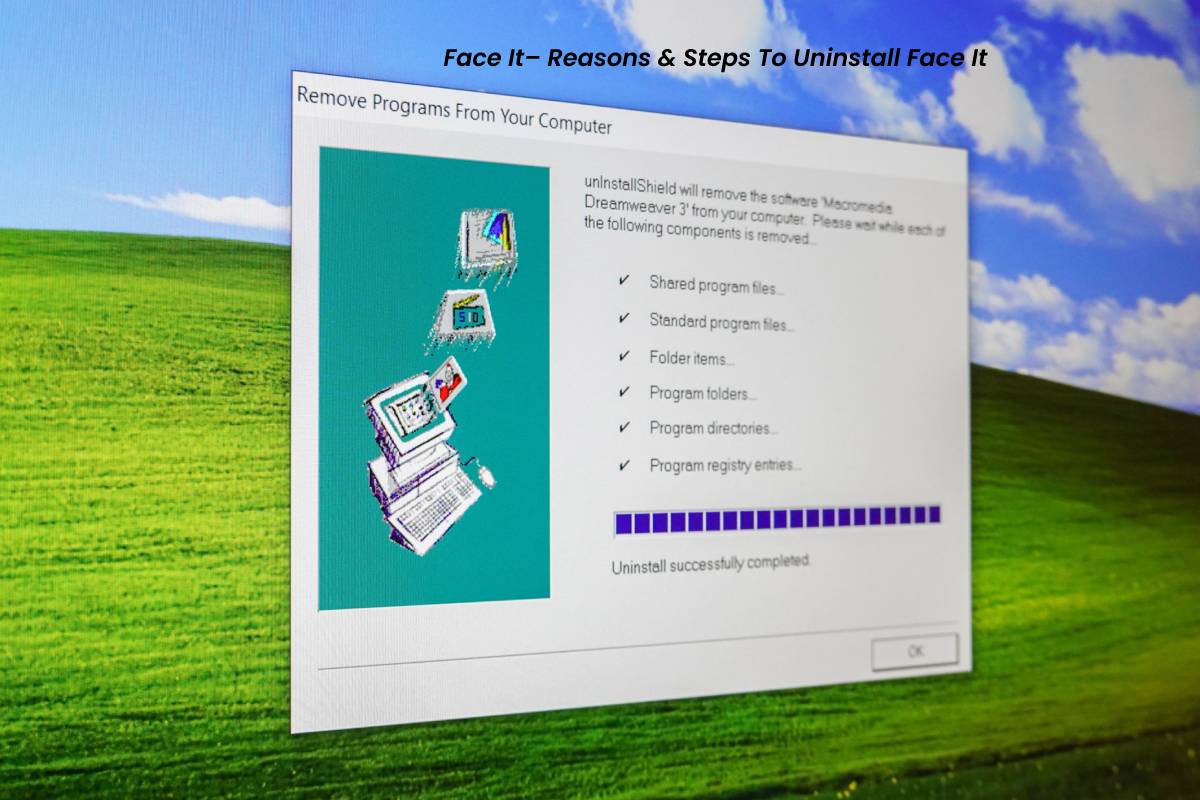
Face It -When some of the essential files of Faceit get corrupted, it becomes incompatible with other system applications. The virus infects the faceit, and it doesn’t work correctly. So, to fix this issue, users should uninstall it and then reinstall it back in their system. But sometimes, Windows operating system cannot locate the program’s default uninstaller, and the app does not uninstall properly.
Uninstalling FaceIt or its anti-cheat software may require users to check installed applications, background services, and system settings. Understanding how Windows 11 manages applications and security features can help users navigate the removal process and troubleshoot software-related issues.
Table of Contents
Why You Fail To Uninstall FaceIt
If you are unable to uninstall FaceIt completely, the cause could be one or more of the following situations:
- FaceIt was not correctly or completely installed previously.
- Windows OS is unable to locate the default uninstaller of the program.
- As Some of the program files have been deleted mistakenly.
- A virus has infected your computer, and the system does not function properly.
- To exclude the above causes, you can try reinstalling FaceIt by downloading it from the official or performing a full scan with your antivirus product and uninstall face it again.
Steps to Uninstall Faceit From Your Computers
Before begin to uninstall FaceIt, make sure that you are using the admin profile from your computer and that the Faceit app is not running.
Removing unwanted applications is an important part of keeping a computer organized and managing available storage. Mac users may also need to update their account information, and learning how to change username on MacBook can help them manage user profiles and personal settings on macOS.
#1 Method To Uninstall Face It
- Right-click on the start button.
- Select ‘Programs and features.
- Double click ‘Face it.
- Confirm the removal.
- Restart your computer.
- Click on the Windows button, and enter ‘Regedit’ in the search box.
- Search for entries that contain the program’s name like HKEY_CURRENT_USER\Software\(FaceIt or the publisher’s name); and HKEY_LOCAL+MACHINE\SOFTWARE\(FaceIt or the publisher’s name) and delete the unwanted programs.
#2 Method To Uninstall Face It
- Open’ Control panel’.
- Click on ‘Uninstall a program.
- Select FaceIt on the programs list, and click on the ‘Remove/Uninstall button.
- Restart your computer.
- Delete all remaining files in the same way as we explained in Step 7 of the first method.
#3 Method To Uninstall Face It
- The third method users can try in order to accomplish safely uninstall Faceit software from their computers is by using an advanced uninstall tool.
- These tools and apps are designed to force uninstall stubborn apps that cannot be removed with the standard removing process and they can easily uninstall face it app.
More Tips To Uninstall Face It
Besides uninstalling face it programs in the system, there are many other ways to optimize your computer’s performance. For instance:
- Run fewer programs at the startup.
- Close the programs running on the computer.
- Don’t use more than one antivirus product.
- Keep all the hardware drivers up-to-date.
- Use the “High Performance” Power Plan.
- Turn off unneeded visual effects.
Software troubleshooting does not end with removing unwanted applications, as users may also encounter problems with drivers and connected devices. Understanding common HP printer error codes can help users identify printer-related problems and find suitable troubleshooting steps when maintaining their computers.
Conclusion
Faceit removal can be annoying for some users because the software remains active on their devices even after being deleted. Follow the steps above and choose your preferred method to delete the face it software safely from your computer.